

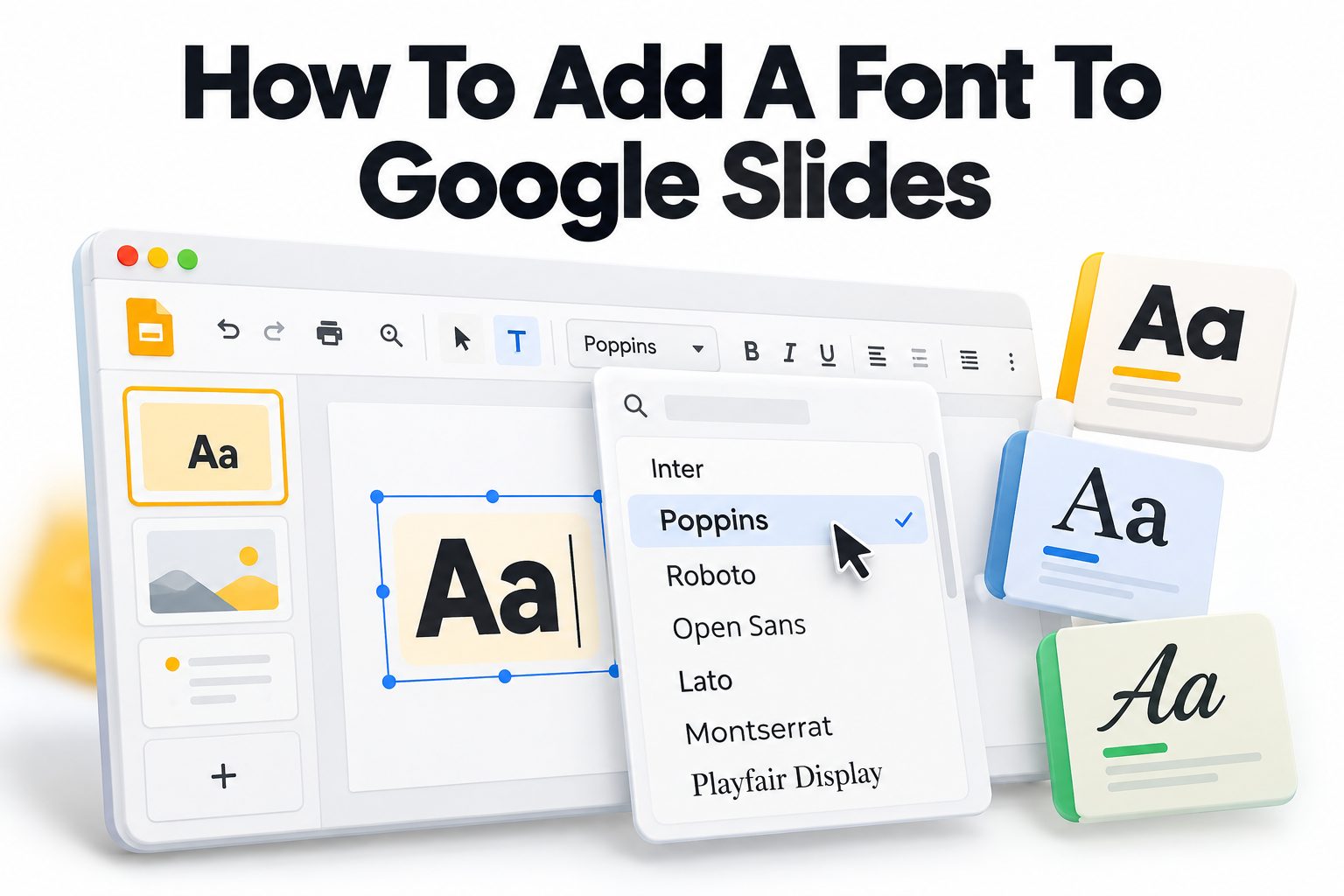
Google Slides includes far more typefaces than the short list shown in the standard font menu. To access them, open the font drop-down, select More fonts, find the typeface you want, and add it to your list. The process takes less than a minute and makes the selected font available for headings, body text, charts, diagrams, and other editable text in your presentation.
There is one important limitation to know before learning how to add a font to Google Slides: you can add fonts from Google’s available web-font library, but you cannot upload arbitrary TTF, OTF, or other font files directly into Slides. Installing a font on your computer does not guarantee that it will appear in the app.
This article walks you through the desktop process, explains what to do when a font is missing, and shows how to apply a new typeface consistently across an entire deck. You will also learn practical workarounds for custom brand fonts, PowerPoint compatibility, mobile editing, and common font problems.
Adding a Font to Google Slides
The easiest way to expand your Google Slides font list is through the More fonts menu. This option is available in the browser-based desktop version of Slides and lets you search, sort, and filter the supported typefaces.
You do not need to download a file, install a browser extension, or use a third-party add-on. The selected typeface is added to your Slides font menu, making it easier to find and reuse in your current and future presentations.
Follow these steps:
1. Open Google Slides in a desktop web browser.
2. Open an existing presentation or create a blank one.
3. Select a text box or highlight the text you want to format. You can also click inside a text placeholder before typing.
4. Click the Font drop-down in the toolbar. It usually displays the name of the current typeface, such as Arial.
5. Select More fonts at the top of the menu.
6. Enter a font name in the search box, or browse the available typefaces.
7. Click the font you want to add. A checkmark will appear beside the selection.
8. Add any other fonts you expect to use in the same presentation.
9. Click OK or the confirmation button shown in the dialog.
10. Open the Font drop-down again and select the newly added typeface to apply it to your text.
Adding a typeface to the menu does not automatically reformat the presentation. You still need to select the relevant text, text boxes, or theme placeholders and apply the font. For a deck-wide change, editing the theme is usually faster than formatting each slide separately.
What Adding a Font Actually Means
The phrase “add a font” can be misleading in Google Slides. You are not uploading font software to your Google account or installing it on Google’s servers. You are adding an already supported web font to the shorter list shown in your font menu.
This distinction explains why a typeface may exist on your laptop but remain unavailable in Slides. The application is cloud-based and uses a controlled selection of fonts that can render consistently for collaborators viewing the presentation on different devices.
Google Slides does not currently offer a standard feature for uploading personal TTF or OTF files. Downloading a typeface from a foundry, Adobe Fonts, or the Google Fonts website and installing it locally will not necessarily make it usable as editable text in Slides.
The More fonts window also should not be treated as a complete mirror of every font published through Google Fonts. The typefaces available in other Google products or downloadable from the Google Fonts catalog may not all appear in Google Slides.
Quick Font-Adding Checklist
- Use the desktop browser version of Google Slides.
- Click inside a text box so that text-formatting controls are visible.
- Open the Font menu and select More fonts.
- Search for the typeface by its exact name.
- Select the font and confirm the change.
- Reopen the Font menu to apply it to selected text.
- Remember that local TTF and OTF files cannot be uploaded directly.
- Edit the presentation theme when the font needs to appear throughout the deck.
Finding the Right Font in the More Fonts Menu
The More fonts window is more useful than a long alphabetical list. Depending on the interface available to your account, you may be able to search by name, filter by writing system, narrow the results by category, or change how the list is sorted.
Categories can help when you have a visual style in mind but no specific typeface selected. Serif fonts often suit formal or editorial presentations, while sans-serif fonts tend to remain clear on screens. Display and handwriting styles are better reserved for short titles or decorative accents.
Search using the font’s exact name first. If there are no results, try a shorter part of the name and check the spelling. Font families sometimes appear under a family name rather than the full style name used by a download website or design application.
When several weights are available, test the regular, medium, semibold, and bold styles on an actual slide. A typeface that looks appealing in a catalog can become difficult to read when projected, especially at small sizes or over a colored background.
For a practical overview of pairing title and body typefaces, see [Internal Link: Best Fonts for Presentations]. A restrained pairing usually works better than using several decorative fonts in one deck.
Applying a New Font to Existing Slides
To change a single passage, highlight the text and choose the new typeface from the Font menu. To change an entire text box, click its border so the whole object is selected, then apply the font. This avoids accidentally changing only the paragraph containing the cursor.
You can select several objects at once by holding Shift while clicking their borders. This is useful when a slide contains separate title, label, and annotation boxes that should share one font. Check charts and diagrams separately because their text may use independent formatting.
For a presentation with only a few slides, manual formatting may be sufficient. Work through titles, subtitles, body text, captions, tables, and chart labels in a consistent order. This reduces the chance of leaving an isolated object in the old typeface.
Copied content may carry its original formatting into the deck. When pasting text from another document, use the paste-without-formatting command when appropriate, then apply the presentation’s font. This prevents mismatched typefaces, sizes, colors, and spacing from accumulating.
Choosing the Best Scope for a Font Change
Single phrase
Use this approach for emphasis within a sentence. Apply it sparingly because frequent font changes can make a slide feel fragmented.
One text box
Choose the text box border before applying the font. This is useful for individual titles, callouts, labels, or captions.
Several objects
Shift-click the relevant objects and format them together. This works well when multiple labels need identical styling.
One slide
Select and format the text objects on that slide. Confirm that charts, tables, and diagrams have also been updated.
Entire presentation
Edit the theme’s title and body placeholders. This is the most reliable method for creating a consistent deck and formatting future slides automatically.
Changing Fonts Across the Entire Presentation
Google Slides themes control recurring design choices, including title and body-text formatting. Instead of editing every slide manually, open the theme editor, often labeled Theme builder in the View menu, and change the fonts used by the master layouts.
Select the top theme slide to make a broad change, or edit individual layouts when certain slide types need different formatting. For example, you might use a bold display font on title slides and a restrained sans-serif typeface on content layouts.
Click the title placeholder in the relevant theme layout and choose your heading font. Repeat the process for subtitle and body placeholders. Review nested bullet levels as well, since different indentation levels may retain their own font, size, or weight settings.
Close the theme editor and inspect several slides. Text inside standard placeholders should adopt the updated design. Manually created text boxes may not change because they are not connected to the theme. Those objects must be reformatted directly.
Theme editing also affects slides created later with the updated layouts. That makes it valuable for templates, recurring reports, training decks, and team presentations. A well-configured theme saves time and reduces visual drift as more people contribute content.
Keep a backup copy before making a large deck-wide change. Different fonts have different character widths and line heights, so a replacement can alter line breaks, bullet wrapping, title height, and the amount of text that fits in a placeholder.
Working With Custom Brand Fonts
Organizations often use licensed brand typefaces that are not available in Google Slides. Since custom font files cannot normally be uploaded as editable Slides fonts, the best solution is to choose an available substitute with similar proportions, weight, and overall character.
Start by identifying the brand font’s basic classification. Note whether it is serif or sans-serif, geometric or humanist, narrow or wide, and light or heavy. Compare lowercase shapes and numeral styles, not just capital letters in a logo.
A substitute should also perform well in presentation conditions. Test it in headings, paragraphs, charts, and footnotes. The closest visual match is not always the most practical option if it lacks readable bold weights, multilingual characters, or clear punctuation.
Record the approved substitute in the organization’s presentation guidelines. That gives employees and external partners a dependable choice rather than encouraging each person to select a different approximation. You can also incorporate the substitute into a shared Slides template.
When the exact brand lettering is essential, such as in a logo or campaign lockup, export that limited piece of typography from an authorized design application as an image. Use a transparent PNG or suitable vector format when possible.
Image-based text is not a good replacement for ordinary slide content. It cannot be edited normally, searched as reliably, adapted to new wording, or read as effectively by assistive technology. Reserve it for approved graphic assets rather than paragraphs and presentation titles.
Custom Font Do and Don’t List
Do
- Choose a supported substitute for normal editable text.
- Compare width, weight, x-height, and readability before approving a replacement.
- Add the substitute to the theme so collaborators use it consistently.
- Keep logos and official wordmarks as approved graphic assets.
- Confirm that your font license permits the way you create and distribute those assets.
Don’t
- Assume installing a font on your computer adds it to Google Slides.
- Convert every slide into an image simply to preserve typography.
- Use screenshots for body copy, charts, or frequently edited titles.
- Depend on a third-party extension that claims to bypass Slides’ font limitations without reviewing its permissions and reliability.
- Mix several approximations of the same brand font within one presentation.
Using PowerPoint Fonts in Google Slides
A PowerPoint file may use desktop fonts that Google Slides cannot reproduce. When you upload or convert the presentation, Slides may substitute another typeface. The replacement can change line breaks, move labels, enlarge text boxes, or cause text to overflow.
After importing a PowerPoint deck, inspect title slides, dense bullet lists, tables, charts, diagrams, and footer text. These areas reveal substitution problems quickly. Compare the converted version with the original PowerPoint file or a PDF exported from it.
If the original font is available through the Google Slides font menu, add it and apply it to the affected text. If it is unavailable, choose a supported alternative with similar character widths. A close metric match reduces the amount of manual layout repair.
You can also replace fonts methodically by updating theme layouts first and then correcting manually formatted objects. Avoid judging the conversion from one slide alone; a replacement that works for a short title may fail in a narrow table column.
For presentations that must move repeatedly between PowerPoint and Google Slides, use typefaces supported by both environments from the beginning. Arial, Georgia, Times New Roman, Trebuchet MS, Verdana, and other broadly available choices may reduce compatibility issues, though availability can still vary.
Keep an original copy of the PowerPoint file and export a reference PDF before conversion. The PDF provides a stable visual record of the intended layout, while the original file preserves editable content and native formatting if the Slides conversion requires substantial repair.
Fixing Fonts That Do Not Appear or Apply Correctly
When More fonts is missing, first confirm that you are using Google Slides in a desktop browser and that you have permission to edit the presentation. View-only and comment-only access prevents formatting changes, while mobile interfaces provide fewer font-management controls.
Click inside an editable text box before checking the toolbar. Some formatting controls are hidden or inactive when no text object is selected. You can also try refreshing the page, reopening the presentation, or testing a new blank deck to determine whether the problem is file-specific.
If a searched font does not appear, verify its exact name. The typeface may not be included in the Slides library even if it appears on the broader Google Fonts website. A locally installed version will not solve that limitation.
When a font appears in the menu but selected text does not change, make sure the text is highlighted or the text box border is selected. A blinking cursor without a selection may apply the font only to characters typed from that point onward.
Copied text can contain mixed formatting. Select the affected passage, clear its formatting if necessary, and then apply the intended font, size, weight, and color. Be aware that clearing formatting can also remove links, emphasis, and other styling you may want to preserve.
If collaborators see unexpected substitutions, ask them to open the file directly in Google Slides rather than through an export or third-party viewer. Also check whether the presentation was downloaded as PowerPoint, since the receiving application may handle fonts differently.
Troubleshooting Checklist
- Confirm that you have editing access.
- Use the browser-based desktop editor.
- Select a text object before opening the Font menu.
- Search with the correct font family name.
- Check whether the typeface is actually supported in Slides.
- Refresh the presentation after adding a font.
- Inspect manually created text boxes separately from theme placeholders.
- Clear unwanted source formatting when pasted text resists changes.
- Compare imported files with a reference PDF.
- Test the presentation in its final delivery format.
Choosing Readable Presentation Fonts
A font should support the message rather than compete with it. Decorative lettering may work for a short opening title, but body copy needs clear character shapes, useful weights, and comfortable spacing. View the slide at a realistic presentation size instead of evaluating it only while zoomed in.
Contrast matters as much as typeface choice. Light gray text on white, thin lettering over photographs, and compressed paragraphs are hard to read even when the font itself is well designed. Use strong contrast and keep text large enough for the viewing environment.
Limit most decks to one font family or a coordinated pair. One family can often provide enough hierarchy through size, weight, and color. If you use two, assign consistent roles—for example, one for titles and another for body text.
Avoid using bold, italics, underlining, capitalization, and color simultaneously to create emphasis. A simple change in weight or size is usually clearer. All-capital headings can work in short doses, but long uppercase passages slow reading and create dense visual blocks.
Language support is also essential. Before committing to a font, test accented characters, currency signs, mathematical symbols, non-Latin scripts, and punctuation required by the presentation. Missing glyphs may appear as empty boxes or trigger an inconsistent fallback font.
For more detailed guidance on sizing and hierarchy, see [Internal Link: Presentation Design Best Practices]. Typography works best when it is coordinated with spacing, layout, color contrast, and the amount of information placed on each slide.
Adding and Changing Fonts on Mobile Devices
The Google Slides apps for Android, iPhone, and iPad let you format text, but font discovery and management are more limited than in the desktop browser editor. The More fonts workflow may not be available in the same form on mobile.
For dependable results, add fonts and configure the presentation theme on a computer first. You can then open the deck on a phone or tablet for smaller edits, reviews, speaker-note changes, and last-minute corrections.
To change text formatting in the mobile app, open the presentation in editing mode, select the text, and open the formatting controls. Choose an available typeface from the font options shown. The exact buttons and menu positions can vary by device and app version.
A font added through the desktop interface may not appear in the same way within every mobile font picker. Even when the presentation displays correctly, mobile editing options can remain restricted. Avoid relying on a phone for a major typography overhaul.
Always preview the completed deck on the device used to present it. Check wrapping, clipping, line spacing, and alignment rather than only confirming the font name. Exporting a PDF can be useful when the presentation must preserve a fixed appearance and does not require animation.
Quick Tips for Better Font Results
- Set up the fonts in the theme before building dozens of slides.
- Use a common sans-serif family for data-heavy presentations.
- Reserve display fonts for short headings.
- Test the smallest text from the back of the intended room.
- Review charts, tables, and diagrams after a deck-wide change.
- Check multilingual characters before approving a typeface.
- Keep an unedited copy before replacing fonts throughout a presentation.
- Export a PDF when exact visual preservation matters more than live editing.
- Use approved image assets only for lettering that must match a custom brand font exactly.
- Document font choices in a shared template or brand guide.
Conclusion
Adding more typefaces to Google Slides is straightforward when the font is part of the app’s supported library. Open the Font menu, choose More fonts, search or browse for a suitable option, select it, and confirm the addition. You can then apply it to individual text or build it into the theme for consistent formatting across the presentation.
The key limitation is that Google Slides does not provide a normal way to upload arbitrary TTF or OTF files. Installing a typeface locally is therefore not the same as adding it to a cloud-based presentation. When an exact custom font is unavailable, use a carefully matched substitute for editable content and reserve image-based lettering for official assets such as logos.
The most reliable approach to how to add a font to Google Slides is to work from a desktop browser, configure title and body styles in the theme, and test the result on multiple slides. Finish by checking imported content, mobile display, special characters, and exported files so that your typography remains readable and consistent wherever the deck is presented.
Frequently Asked Questions
Can I upload a custom font to Google Slides?
No. Google Slides does not normally let users upload TTF or OTF font files. You can add supported web fonts through More fonts or use a similar available typeface for editable presentation text.
Why is my installed font not showing in Google Slides?
A font installed on your computer is not automatically available in the cloud-based Slides editor. Only supported fonts appear in its menus, although a limited number of compatible system fonts may also be recognized.
Where is More fonts in Google Slides?
Open a presentation in a desktop browser, select a text box, and click the Font drop-down in the toolbar. More fonts appears near the top of that menu and opens the searchable font window.
Can I add Google Slides fonts on a phone?
Mobile apps provide text-formatting options but may not offer the full More fonts workflow. Add and organize fonts on a desktop computer first, then use the mobile app for basic edits and presentation review.
How do I change the font on every slide?
Open the presentation’s theme editor or Theme builder and update the title and body placeholders in the relevant layouts. Manually created text boxes may not inherit those changes and must be formatted separately.