

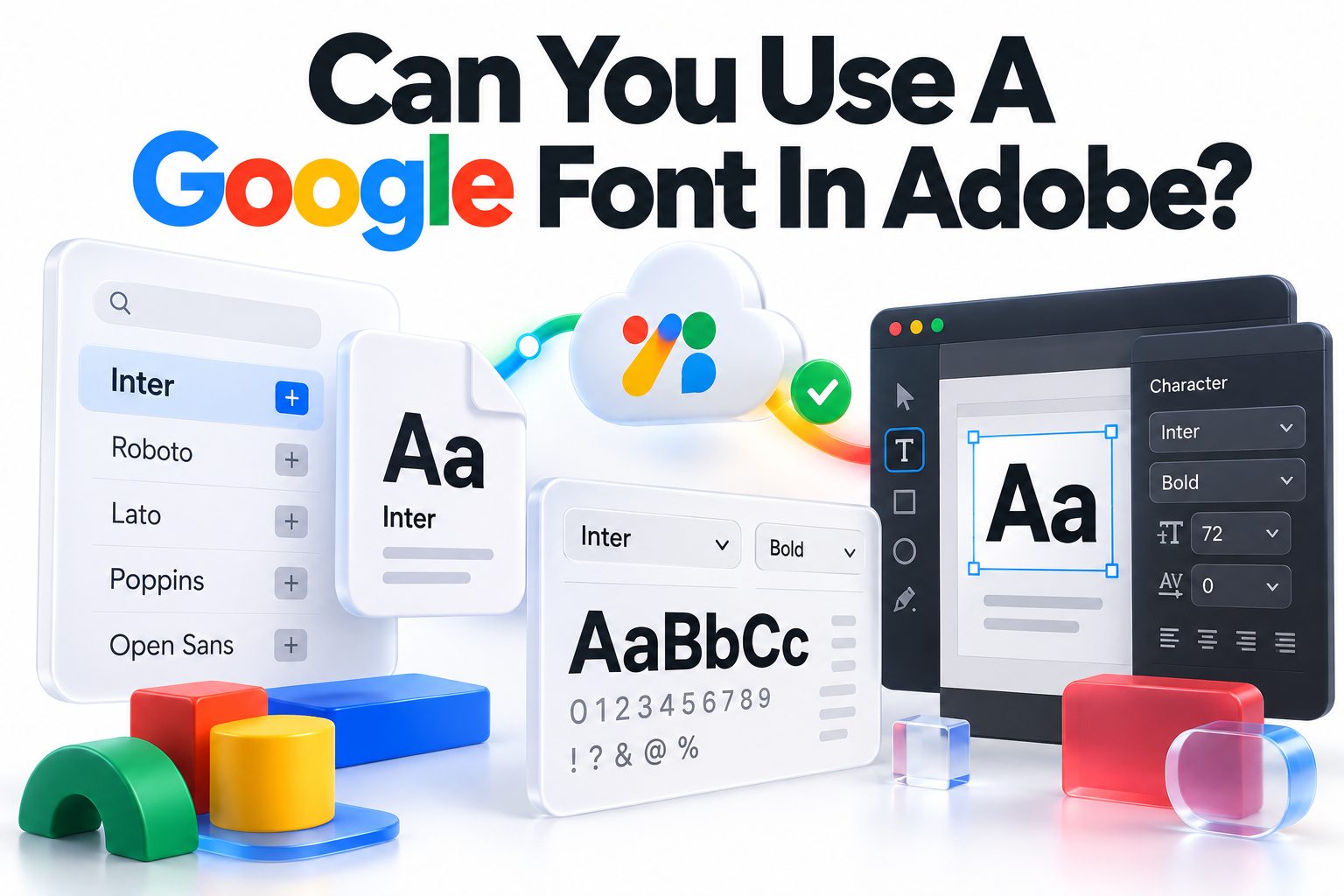
Yes, you can use a Google Font in Adobe applications. The answer to “can you use a google font in adobe” is straightforward: download the font files from Google Fonts, install them on your computer, and then select the font inside Photoshop, Illustrator, InDesign, Premiere Pro, or another desktop application. Most Google Fonts are supplied as standard OpenType or TrueType files, which Adobe software can recognize after installation.
The process is slightly different from activating a font through Adobe Fonts. Google Fonts do not automatically appear in your Adobe account or sync through Creative Cloud. They remain locally installed fonts unless you upload them to an Adobe product that supports custom font uploads. You also need to pay attention to font families, variable fonts, licensing, and document sharing.
Below, you will learn how to download and install Google Fonts on Windows and macOS, use them in popular Adobe applications, troubleshoot missing fonts, package files correctly, and choose the best workflow for print, video, web, and collaborative projects.
Using Google Fonts in Adobe Applications
Google Fonts are not restricted to websites. Most families in the library can be downloaded as desktop font files and used in programs that support common formats such as OTF, TTF, and variable TTF. That includes many applications within Adobe Creative Cloud.
Once a font is installed at the operating-system level, Adobe desktop software usually treats it like any other local font. You can apply it to text, adjust its available weights, create paragraph styles, convert it to outlines, or include it in an exported PDF.
Google Fonts and Adobe Fonts Are Separate Services
Google Fonts and Adobe Fonts are different libraries with different activation methods. Fonts activated through Adobe Fonts are connected to your Creative Cloud account and can be synchronized to compatible Adobe applications. Google Fonts generally need to be downloaded and installed manually.
Some typefaces may be available from both services, but you should not assume that every Google family exists in Adobe Fonts. Even when a family appears in both places, its file version, available weights, naming, or variable-font support may differ.
Key Differences at a Glance
Google Fonts
- Fonts are downloaded from the Google Fonts website.
- Files are installed locally on Windows or macOS.
- Most families use open-source licenses.
- The library is widely used for both web and desktop typography.
- Updates are not necessarily applied to an existing local installation automatically.
Adobe Fonts
- Fonts are usually activated through Creative Cloud or an Adobe application.
- Activation is associated with an Adobe account.
- The library includes fonts licensed from numerous type foundries.
- Availability may depend on Adobe’s current catalog and service terms.
- Activated fonts can synchronize across supported devices and applications.
Downloading a Font from Google Fonts
Visit the Google Fonts website and search for a family by name, classification, language support, or typography characteristics. Open the family page and examine its styles before downloading it. A family may include only a regular style or a broad range of weights and italics.
Use the download option provided on the family page. The browser will normally save a ZIP archive containing the font files and, in some cases, licensing or informational documents. Extract that archive before trying to install the fonts.
Choosing the Right Font Files
A downloaded family may include static fonts, a variable font, or both. Static files represent individual styles such as Regular, Medium, Bold, and Italic. Variable fonts can contain a continuous range of weights or other adjustable axes within a smaller number of files.
Modern Adobe applications generally offer good variable-font support, but static files can be more predictable when collaborating with people who use older software. When compatibility matters, install only one version of the family rather than mixing static and variable files with overlapping internal names.
Installing Google Fonts on Windows
Windows can install both TTF and OTF files without extra font-management software. Close any Adobe applications before installation when practical. This reduces the chance that an application will retain an outdated font list during the process.
After extracting the ZIP archive, select the required files. Right-click the selection and choose the appropriate installation option. Windows may offer “Install” for the current user and “Install for all users,” with the latter potentially requiring administrator permission.
Windows Installation Steps
1. Download the chosen family from Google Fonts.
2. Open the Downloads folder and extract the ZIP archive.
3. Open the extracted folder and locate the TTF or OTF files.
4. Select the styles you plan to use.
5. Right-click the selected files and choose Install.
6. Launch or restart the Adobe application.
7. Create or select a text layer, then search for the family in the font menu.
If the font is needed by several accounts on the same computer, an all-users installation may be more suitable. On a managed workplace computer, local security policies may prevent font installation, so an administrator may need to complete that step.
Installing Google Fonts on macOS
macOS uses Font Book to install and manage fonts. After downloading and extracting the family, double-click a font file to preview it. Select Install Font, or drag multiple files into Font Book when installing several styles at once.
Font Book can also identify certain duplicate or damaged fonts. Pay attention to validation warnings because a conflicted family may appear incorrectly in Adobe menus or cause the application to select a different version than expected.
macOS Installation Checklist
Before opening an Adobe application, confirm that:
- The downloaded ZIP archive has been extracted.
- The required font styles appear in Font Book.
- Font Book has not disabled the family.
- Duplicate versions are not active simultaneously.
- Any validation error has been reviewed.
- The Adobe application has been restarted after installation.
If you maintain separate user accounts, remember that the installation location can affect availability. A font installed only for one account may not appear when another person signs in to the same Mac.
Using Google Fonts in Photoshop
In Photoshop, select the Type tool and create a text layer or highlight existing text. Open the font family menu in the Options bar or Character panel, then search for the installed family by name. Available weights normally appear in the adjacent style menu.
Photoshop supports many variable fonts and may display additional controls for axes such as weight, width, or slant. The available controls depend on how the font was designed. Not every variable family includes the same axes, and some provide only a continuous weight range.
Working with Text Layers Safely
Keep text editable while the design is being reviewed. Rasterizing a text layer turns the type into pixels, which prevents later wording, size, and font changes. It may also reduce quality if the layer is enlarged after rasterization.
When sending a PSD to another person, they need access to the same font version to edit the text accurately. For a final image that does not require editing, exporting to PNG, JPEG, or another flattened format removes the recipient’s dependency on the installed font.
Using Google Fonts in Illustrator
Illustrator lists locally installed Google Fonts in its Character panel and font menus. Select a text object, choose the family, and apply the required style. You can also save the family within character and paragraph styles to keep typography consistent throughout a larger document.
For logos or final artwork sent to a print provider, designers sometimes convert text to outlines. Outlining preserves the visible letter shapes without requiring the recipient to install the font, but it removes normal text editing and can affect accessibility or text extraction.
Editable Type Versus Outlined Type
Use editable type when:
- The wording may still change.
- The recipient has the same font.
- Accessibility and searchable text matter.
- The file is part of an ongoing design system.
- Paragraph reflow may be required.
Use outlined type when:
- A printer specifically requests outlined artwork.
- A final logo must retain exact letter shapes.
- The recipient does not need to edit the words.
- Font availability cannot be guaranteed.
Save an editable master file before creating outlines. Once letters have become vector paths, restoring the original text structure is inconvenient and may be impossible without rebuilding it.
Using Google Fonts in InDesign
InDesign is particularly sensitive to exact font matching because long documents often rely on paragraph styles, character styles, tables, and automatic text reflow. After installing a Google Font, assign it through the Character panel or incorporate it into the document’s styles.
If InDesign reports a missing font, open its font-management or find-and-replace font controls to see the exact family and style requested. A family with the same public name may still be treated as different when its internal version or source has changed.
Packaging an InDesign Project
The Package feature collects the InDesign document, linked graphics, and eligible fonts into a project folder. Packaging is useful when transferring a publication to a colleague or print provider, but it does not override a font license.
InDesign may decline to copy a font when its embedding permissions prohibit packaging. Google Fonts commonly use licenses that permit broad use and redistribution under stated conditions, but you should confirm the license supplied with the exact family rather than assuming every font follows identical terms. For more production guidance, see [Internal Link: Preparing InDesign Files for Print].
Using Google Fonts in Premiere Pro and After Effects
Premiere Pro and After Effects can use locally installed fonts for titles, captions, motion graphics, and text layers. Restart the application after installation, then search for the family in the relevant text or graphics controls.
Font choice affects more than appearance in video. A replacement font can alter line breaks, title width, animation alignment, and subtitle readability. Test the design at the final frame size, particularly when using light weights over moving backgrounds.
Practical Video Typography Tips
- Prefer medium or semibold weights for small on-screen text.
- Check titles at the actual delivery resolution.
- Leave enough contrast between the type and background.
- Avoid extremely narrow styles for captions.
- Confirm that accented characters and required scripts are included.
- Render a short test before committing to a long export.
- Share font details with anyone editing the project.
A rendered video does not require viewers to have the font installed. The dependency matters only while the project, template, or text remains editable.
Using Google Fonts in Adobe Express
Adobe Express works differently from desktop applications because it runs through a browser or mobile environment rather than reading every font installed on your computer. A font that appears in Photoshop after local installation may not automatically appear in Express.
Some Adobe Express accounts or plans may offer custom font upload features. Availability can vary by account type, workspace permissions, and current Adobe product terms. If custom uploads are supported, upload the permitted font file through the brand or font controls and follow the on-screen requirements.
Before Uploading a Custom Font
Check these points before attempting an upload:
- Your Adobe Express account includes custom font support.
- The file format is accepted by the service.
- You have permission to upload and use the font.
- The family and style names are clearly identifiable.
- The font is not already present under a slightly different name.
- Team members have access to the same brand or workspace assets.
Browser-based products cannot always access local fonts reliably for security and compatibility reasons. Treat font uploading as a separate process from installing a font on your operating system.
Google Font Licensing for Adobe Projects
Google Fonts are generally distributed under open-source font licenses, with the SIL Open Font License appearing frequently. Other approved open licenses may also be used. These licenses commonly allow use in personal and commercial design work, including printed materials, advertisements, packaging, videos, and digital graphics.
Open-source does not mean that all conditions disappear. Restrictions can apply to selling the font by itself, renaming a modified version, redistributing files without required notices, or using reserved font names. Review the license file included with the family when redistributing or modifying it.
Commercial Work and Client Deliverables
Using letterforms in a finished design is different from handing font software to a client. A flattened image, printed brochure, or rendered video normally contains the visual output rather than an editable copy of the font file.
For editable deliverables, tell the client where to obtain the font and which version was used. Directing them to the official Google Fonts family page is often cleaner than including loose font files, especially when no packaging workflow is required. More licensing context is available at [Internal Link: Font Licensing for Commercial Design].
Common Problems and Their Solutions
A Google Font may fail to appear immediately after installation because the Adobe application loaded its font list earlier. Save your work, close the application fully, and reopen it. If that does not help, verify that the font is active in Windows font settings or macOS Font Book.
Conflicts are also common when the same family exists from multiple sources. A local Google Fonts version, an Adobe Fonts activation, and an older copy installed by another program can share similar names while containing different internal data.
Troubleshooting Table
Problem | Likely Cause | Practical Fix
Font is missing from the menu | Application was open during installation | Restart the Adobe application
Only one weight appears | Other style files were not installed | Install the missing static files or use the variable font controls
Text uses the wrong style | Duplicate family versions are active | Disable or remove the conflicting version
Document reports a missing font | The file expects a different internal version | Install the original version or replace the font deliberately
Variable controls are unavailable | The installed file is static or the software is outdated | Install the variable file or use static styles
Font appears in Photoshop but not Express | Express does not automatically read local fonts | Use its custom font upload feature if available
Characters display as boxes | The font lacks the required glyphs | Choose a family with suitable language coverage
Avoid deleting every font with a similar name before identifying the actual conflict. Record the font source and version first, then disable one copy at a time. This makes it easier to reverse the change if another document depends on that version.
Managing Duplicate and Missing Fonts
Duplicate fonts can cause subtle problems rather than an obvious error. A document may open normally but use different spacing, line breaks, or glyph shapes. This is especially likely when one person uses a static family and another uses a variable release with matching style names.
Adobe applications may offer font replacement tools when a document is opened. Review replacements carefully instead of accepting a visually similar family without checking the layout. A small change in character width can shift an entire brochure, presentation, or subtitle sequence.
A Reliable Font Management Routine
1. Choose one source for each active font family.
2. Keep the downloaded license and original ZIP archive with project records.
3. Note whether the document uses static or variable files.
4. Remove or disable outdated duplicates only after identifying them.
5. Share the family name, style, source, and version with collaborators.
6. Recheck page breaks, text overflow, captions, and alignment after replacement.
7. Export a reference PDF or image showing the approved appearance.
Teams that use many typefaces may benefit from a dedicated font manager. The goal is not to install every available style, but to maintain a controlled collection that produces consistent results across projects.
Choosing Between Google Fonts and Adobe Fonts
Google Fonts is a strong choice when a typeface must work across a website and Adobe-created marketing materials. Designers can use the downloaded desktop files in layouts while developers load the related webfont through an appropriate web implementation. This helps maintain a consistent visual identity.
Adobe Fonts is convenient for Creative Cloud-centered workflows because activation is integrated with many Adobe applications. It may also provide access to commercial foundry families that are not available through Google. The better source depends on licensing, collaboration, web requirements, and long-term availability.
Google Fonts and Adobe Fonts Comparison
Factor | Google Fonts | Adobe Fonts
Desktop use | Download and install locally | Activate
Web use | Designed for web and downloadable workflows | Available through Adobe’s supported web-font workflow
Cost model | Open-source library | Access tied to
Collaboration | Team members can download the same public family | Collaborators may need suitable Adobe access
Version control | Requires manual attention | Activation is managed through Adobe, though catalog changes can occur
Offline work | Installed local files remain available | Previously activated fonts may depend on account and service behavior
Neither source is universally better. For public brand systems, open distribution can make Google Fonts practical. For an Adobe-focused creative team, Adobe Fonts may reduce manual installation and activation work.
Best Practices for Consistent Results
Decide on the font source before production begins. Mixing versions midway through a project invites reflow and missing-font warnings. Record the exact family, selected weights, download source, and date in a brief project note.
Install only the styles the project needs. A family containing dozens of files can clutter menus and increase the chance of choosing the wrong variation. Regular, italic, medium, semibold, and bold often cover typical editorial and marketing requirements.
Do and Don’t List
Do
- Download fonts from the official Google Fonts website.
- Extract archives before installation.
- Keep an editable master before outlining text.
- Verify language and symbol coverage.
- Share font source details with collaborators.
- Review the license before redistributing font files.
- Test PDFs, print proofs, and video renders.
Don’t
- Assume a similarly named font is the same version.
- Mix variable and static copies without a reason.
- Rasterize working text too early.
- Ignore missing-font warnings.
- Upload font software to a shared service without checking permissions.
- Expect browser-based Adobe tools to detect every local font.
- Replace fonts without reviewing line breaks and text overflow.
Consistent typography depends on process as much as font choice. A short record of the approved files can prevent hours of corrections when a document moves between designers, editors, clients, and printers.
Conclusion
So, can you use a google font in adobe applications? Yes. Download the required family from Google Fonts, extract and install its TTF or OTF files, restart the Adobe application, and select the family from the font menu. This approach works well in desktop programs such as Photoshop, Illustrator, InDesign, Premiere Pro, and After Effects.
The main considerations are compatibility and consistency. Choose deliberately between static and variable files, avoid activating duplicate versions from several sources, and confirm that the font contains every language character the project needs. When sharing editable documents, provide collaborators with the official download source and record the version used. For final artwork, a PDF, flattened image, rendered video, or carefully outlined vector file can reduce font dependencies.
Google Fonts are suitable for many personal, commercial, print, web, and video projects, but the license supplied with the chosen family remains the final authority. With a controlled installation and sharing process, they fit comfortably into a professional Adobe workflow.
Frequently Asked Questions
Can Photoshop use Google Fonts?
Yes. Download the font from Google Fonts, extract the archive, and install the TTF or OTF files on your computer. Restart Photoshop, then search for the family in the Options bar or Character panel.
Can Illustrator use a Google Font for a logo?
Yes. Illustrator can use locally installed Google Fonts in editable logo text. Before delivering final artwork, save an editable master and consider creating a separate outlined copy when the client or printer does not need editable lettering.
Why is my installed Google Font not showing in Adobe?
The Adobe application may need to refresh its font list. Restart it and confirm that the font is active in Windows or Font Book. If it remains missing, check for duplicate installations, damaged files, or unsupported formats.
Are Google Fonts free for commercial Adobe projects?
Most Google Fonts use open-source licenses that permit commercial design work. Still, review the license included with the exact family, especially before modifying the font, redistributing its files, or packaging editable materials for clients.
Can I share an Adobe file that uses a Google Font?
Yes, but recipients need the same font to edit text correctly. Send them the official Google Fonts download link and identify the styles used. For non-editable delivery, export a PDF, image, or rendered video instead.